
Digital onboarding, KYC questionnaires, and portefølje reviews still rely heavily on spreadsheet exports at many banker. Relationship managers fill out forms, then copy data into Excel to compute risk scores, fee estimates, or suitability outcomes. This manual workflow creates delays, introduces errors, and leaves compliance teams chasing paper trails.
The alternative is straightforward: automate your form field calculations directly inside your CRM. When calculations run in real time as users complete fields, you eliminate the export-import cycle entirely. Scores appear instantly, thresholds trigger workflows, and every result is auditable from day one. Real-time calculations are helpful for users by providing immediate feedback and reducing errors.
Introduction: Why Automate Form Calculations in 2026
Finansielle institutioner face mounting pressure to accelerate client journeys while maintaining regulatory rigour. MiFID II suitability forms, AML risk-scoring questionnaires, fee schedules, loan affordability checks, premium calculations, ESG scoring, and internal godkendelse checklists all require arithmetic or conditional logic. Performing these manual calculations in spreadsheets after the fact is no longer sustainable.
From the InvestGlass perspective, our Swiss-hosted CRM and digital onboarding forms let banks and wealth managers calculate scores, totals, and limits directly in the form. There is no need to export to Excel, run a macro, and re-import the result. Automated form calculations are similar to spreadsheet tools like Excel, making it easier for users to transition and set up calculations across multiple fields or tables. The form engine handles the equation as soon as the user enters a value, and the calculation results are stored alongside the submission.
The benefits are concrete. Fewer manual errors mean compliance teams spend less time correcting mis-typed numbers. Real-time feedback helps relationship managers guide clients through onboarding without waiting for back-office review. Account opening time drops from days to minutes. Every calculated field carries a timestamp and formula reference, and storing calculation results with associated dates is essential for regulatory compliance, supporting audits by FINMA, EU regulators, or internal risk committees.
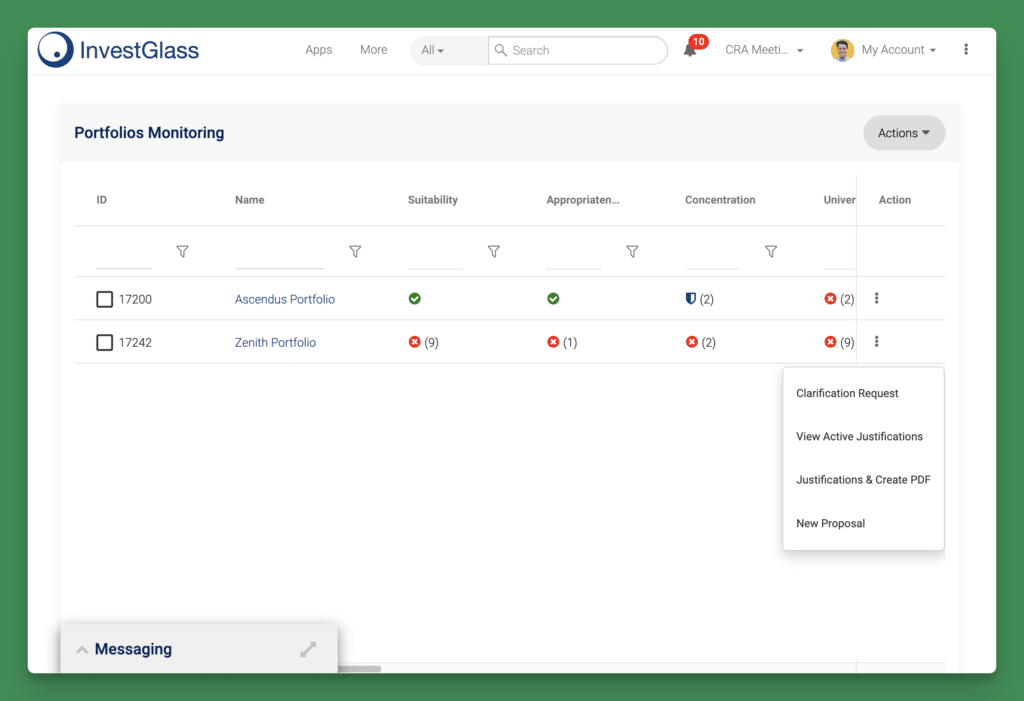
This article walks through the core concepts, shows how to set up basic and advanced formulas, explains integration with onboarding journeys and porteføljestyring, and covers data privacy and governance considerations. By the end, you will have a clear roadmap to replace spreadsheet-style work with fully automated, Swiss-hosted form calculations.
Introduction to Form Fields
Form fields are the building blocks of any digital form, enabling users to input, manage, and process data efficiently. In the context of finansielle tjenester, form fields are not just for collecting information, they are powerful tools that can automatically calculate values as users enter data. This automation reduces the need for manual calculations, minimises the risk of errors, and accelerates workflows across a variety of forms, from onboarding questionnaires to complex order forms.
By configuring form fields to perform calculations, users can create forms that instantly process data and display results, whether it is a running total, a risk score, or a fee estimate. This is particularly helpful in scenarios where calculations are frequent and accuracy is critical, such as in scoring systems or financial proposals. For eksempel, in PDF forms, form fields can be set up to automatically calculate totals or apply formulas, ensuring that every value is up-to-date and consistent across the document.
Automating calculations within form fields not only streamlines data entry but also enhances the overall user experience. Users no longer need to perform manual calculations or rely on external tools; instead, the form itself becomes a dynamic, interactive solution that guides them through each step. This approach is especially valuable for financial institutions looking to create efficient, error-resistant processes that save time and improve data quality.
Whether you are building a simple order form or a comprehensive onboarding journey, leveraging form fields to automate calculations transforms your forms into intelligent, responsive assets that support both users and compliance requirements.
Core Concept: How Form Field Calculations Work (Like Excel but Inside Your CRM)
Every field in a digital form, text box, dropdown list, checkbox, has an internal name. Calculations reference these names the same way you reference cell addresses in Excel. Instead of writing “=B2C2,” you write “Investment_Amount Management_Fee_Rate.” The form engine evaluates the expression and populates an output field with the result. Each field also has a specific type (such as number, text, or date), which determines how calculations are performed and ensures the correct handling of data.
Calculations execute whenever users change inputs, move to the next step with a click, or submit the form. In InvestGlass, the workflow engine can also trigger recalculations on demand, for example, when external data (currency rates, benchmark values) updates overnight.
Consider three concrete examples:
- Fee Estimate: Investment_Amount * Management_Fee_Rate multiplies the client’s proposed investment by the agreed fee rate, displaying the annual fee in a read-only field.
- Net Worth: Assets – Liabilities performs subtraction to show the client’s net position instantly.
- Transaction Sum: Sum(Transaction_Amount) iterates through all transaction entries for 2024 and returns the total.
The difference between input fields and output fields is critical. Input fields accept user data, typed text, selected options, entered numbers. Output fields are read-only; they are populated automatically by formulas and cannot be overwritten by the user. In regulated industries, this distinction matters. A calculated risk score should never be manually overridden by an adviser after the form computes it.
Version control adds another layer of governance. When your compliance team updates the risk formula in April 2025, the platform should retain the previous version so auditors can see which logic applied to each client.
Setting Up Basic Numeric Calculations in Digital Forms
Creating a calculated field in InvestGlass follows a familiar pattern. First, you create a form and add number fields for inputs, gross income, monthly expenses, loan amount, collateral value. Then you add a calculated or read-only field for the result. The form builder lets you select edit mode, enter the formula, and specify display formatting.
Numeric behaviour requires attention. The form should treat fields as numbers, not plain text, when applying arithmetic. Validation rules prevent entries like “1T2e3xt” that would cause unexpected results. If a user types letters into a field expecting a number, the form should display an error message before submission. You can also set a maximum value for fields like loan amount or income to ensure data integrity and prevent unrealistic entries.
Here are three calculator examples relevant to private banking and lending:
Brugssag | Formula | Output Field |
|---|---|---|
Disposable Income | gross_income_2025 – total_expenses_2025 | disposable_income_2025 |
Loan-to-Value Ratio | loan_amount / collateral_value | ltv_ratio |
Management Fee Estimate | aum * fee_rate | annual_fee_estimate |
Typical operators include addition, subtraction, multiplication, division, and parentheses for precedence. These mirror spreadsheet rules, so anyone comfortable with Excel will adapt quickly.
Field naming deserves deliberate thought. Calling a field “Text1” makes formulas unreadable in six months. Calling it “gross_income_2025” tells every stakeholder exactly what the field contains and when it applies.
Naming and Formatting Fields for Reliable Results
Consistent naming conventions prevent debugging headaches in large financial forms. When IT, compliance, and front-office teams collaborate on form updates, clear names reduce the risk of mis-calculations and simplify handovers.
A recommended naming pattern combines an entity prefix, business meaning, and year or version: kyc_risk_score_2025, portfolio_expected_return_1y, loan_ltv_q1_2026. This syntax makes formulas self-documenting.
Formatting rules ensure that displayed values match business expectations:
- Use two decimals for fees and percentages, zero decimals for risk scores.
- Apply currency codes (CHF, EUR, USD) via field masks so users see “CHF 1,000,000” without typing the currency string into a numeric field.
- Use ISO date format for date fields to avoid regional ambiguity. Using standardized dates in calculations helps avoid errors and ensures consistency across forms, especially when automating form field calculations that involve dates or calendar items.
Avoid mixing text and numbers in the same field unless the platform explicitly supports parsing. A field labelled “Amount” should never accept “CHF 1,000,000” as text; it should accept “1000000” and display the formatted value.
Field-level validation messages guide relationship managers in real time. If a user enters a negative income or an LTV ratio above 100%, the form can display a warning before submission, reducing back-and-forth with compliance.
Configuring Calculation Settings
Setting up calculation settings in your form fields is a crucial step to fully automate calculations and ensure accurate results. Within the form builder, users can access the Calculate tab in the Properties dialog box to determine how each field’s value is calculated. Here, you can choose from several options, such as using simplified field notation or creating custom calculation scripts.
Simplified field notation allows users to reference field names and apply basic arithmetic operations, addition, subtraction, multiplication, and division, directly within the calculation editor. For those requiring more advanced logic, the Edit option enables the addition or modification of JavaScript scripts, providing flexibility to create custom calculations tailored to specific business needs.
When working with multiple calculated fields, it is important to set the calculation order to ensure that each value is computed in the correct sequence. This can be managed by selecting Options in the Fields pane and choosing Set field calculation order. Proper sequencing is essential, especially when one calculated field depends on the result of another.
Users can also configure calculations to span multiple tables or fields, making it easy to sum values, perform subtraction, or combine data from different sources. Dropdown lists allow users to select specific fields or tables to include in a calculation, streamlining the process of automating calculations across complex forms. For example, you might create a calculation that automatically sums all entries in a transaction table or multiplies quantities by unit prices across several tables.
To enhance data analysis and visualisation, charts can be used to display calculation results directly within the form. This feature helps users quickly interpret key metrics and trends, supporting better decision-making and reporting.
By carefully configuring calculation settings, users can create forms that not only automate calculations but also save time, improve data accuracy, and provide valuable insights at every stage of the workflow. Whether you are calculating totals, averages, or more complex formulas, these settings ensure your forms deliver reliable, real-time results that drive efficiency and compliance.
Building Advanced Formulas: Risk Scores, Compliance Checks, and Fee Schedules
Basic arithmetic covers many scenarios, but financial compliance often requires conditional logic. You need to combine multiple inputs, apply if-else rules, and map results to categories.
Consider a risk-scoring example for a suitability questionnaire. The form collects four inputs: client age, investment horizon in years, financial knowledge level (1–5), and loss tolerance (1–5). Each input maps to a numeric value, and the form computes a Total Risk Score from 0 to 100:
risk_score = (age_factor * 0.2) + (horizon_factor * 0.3) + (knowledge_factor * 0.25) + (loss_tolerance_factor * 0.25)
The output field displays the score. A second calculated field uses conditional logic to assign a Risk Profile:
if risk_score > 80 then "Aggressive"
else if risk_score > 50 then "Moderate"
else "Conservative"
Fee schedules often follow tiered structures. A progressive management fee might work like this:
AUM Tier | Fee Rate |
|---|---|
First CHF 500,000 | 1.00% |
Next CHF 1,000,000 | 0.75% |
Above CHF 1,500,000 | 0.50% |
The formula calculates the blended fee by applying each rate to the corresponding tier and summing the results. InvestGlass forms can perform this combination of multiplication and conditional logic without external scripts. For even more complex scenarios, you can leverage JavaScript to define custom calculation behaviors, allowing for advanced formulas and logic.
Calculated outputs can also trigger workflows. When kyc_risk_score_2025 exceeds a threshold, say, 70, the platform automatically creates a compliance review task and notifies the designated manager. You can also refer to fields from related tables using lookup references in your formulas, such as referencing a parent table’s field for more dynamic calculations.

Handling Repeated Rows: Multi-Line Transactions and Position Tables
Many financial forms include table structures: order tickets with multiple lines, expense claims with repeated rows, or position tables in portfolio reviews. Each row contains numeric fields, Quantity, Unit_Price, Line_Amount, and the form must calculate per-row values as well as table-level aggregates.
In InvestGlass, table data is processed by the workflow engine, iterating through rows to compute totals, averages, or risk exposures per asset class. The per-row formula might be Line_Amount = Quantity * Unit_Price. A table-level sum formula then aggregates all Line_Amount entries into an Order_Total.
For 2025 reporting, you might want to calculate the average transaction size across all trades entered in the form. The formula references all row values in a specific table column and divides by the row count:
average_trade_size = Sum(Line_Amount) / Row_Count
When dynamic rows are enabled, allowing users to add or remove entries, formulas should reference row objects or indexes, not hardcoded field names per row. This approach ensures calculations remain accurate regardless of how many entries the user adds.
When your form spans multiple pages, calculation items and their values can be referenced or duplicated across pages to maintain consistency and ensure users always see up-to-date results, regardless of which page they are on.
Integrating Automated Calculations into Onboarding and KYC Journeys
Form calculations become truly powerful when embedded in end-to-end client journeys. A private banking client fills out a digital onboarding form on the InvestGlass client portal. The form collects ID data, income, assets, liabilities, and political exposure. As the client enters information, the form computes an AML risk score, an expected transaction profile, and a preliminary suitability classification.
Based on the calculated risk score, the system determines which KYC path to trigger. A score below 30 routes the client through standard due diligence. A score above 30 triggers enhanced due diligence with additional documentation requirements.
Calculated fields persist beyond the initial form. A net_wealth_2025 value computed during onboarding is automatically visible in CRM records, portfolio onboarding forms, and client dashboards. These calculated values can also be visualized using charts, helping users quickly interpret key metrics and trends. Relationship managers do not re-enter the data; they simply reference the existing field.
Marketing teams can reuse these scores for segmentation. An investment_capacity score might determine eligibility for a campaign targeting high-net-worth individuals. An esg_preference_score might route clients to sustainable investment communications.
Every calculated value is stored with a timestamp, the formula version, and the user who submitted the form. This audit trail supports regulatory audits in Switzerland, the EU, and the UK. When FINMA requests documentation for a client categorisation decision, the bank can produce a complete history of inputs, formulas, and outputs.
Connecting Form Calculations with Portfolio Management and Reporting
Calculated values from onboarding forms feed directly into InvestGlass portfolio modules. A form-derived target_risk_level, investment_horizon_years, and currency_preference influence model portfolio selection. The platform compares these inputs against available strategies and recommends a suitable allocation.
Consider a concrete link between forms and portfolio analytics. The onboarding form computes target_volatility_1y based on risk questionnaire answers. The System til porteføljestyring calculates actual portfolio volatility. If the difference exceeds a defined threshold, the platform triggers a review task for the relationship manager.
Periodic suitability reviews, required annually under MiFID II, pre-populate previous answers and recalculate scores. A score_history view shows how the client’s risk profile has changed over time, supporting documentation requirements without manual data entry.
Outputs from form calculations, expected income, fee estimates, tax residence flags, can be displayed in client reports and dashboards. PDF forms for proposals and term sheets pull these values automatically, eliminating spreadsheet work and ensuring consistency across documents.
Using an Ai Assistant to Enhance Form Field Calculations
Den integration of an AI assistant into your form field calculations brings a new level of automation, accuracy, and efficiency to financial workflows. With InvestGlass, users can leverage powerful tools to automatically calculate values across table columns, multiple tables, and even complex data structures, without the need for manual calculations or advanced programming skills.
To get started, users simply select the “Automate calculations” option from the dropdown list within the form builder. From there, you can choose the specific table and columns you want to work with, whether you’re calculating the sum of a column, performing subtraction or division between fields, or combining data from multiple tables. The AI assistant uses simplified field notation, making it easy to reference fields and table columns without memorizing complex syntax.
For example, if you need to calculate the total value of transactions in a specific table, the AI assistant can automatically generate a formula that sums the relevant column. If your workflow requires more advanced calculations, such as multiplying quantities by unit prices across several tables, or averaging values from different sources, the AI assistant can create and apply these formulas instantly. This automation not only saves time but also reduces the risk of errors that often occur with manual calculations.
The AI assistant’s features extend beyond basic arithmetic. It can handle division, multiplication, and even more sophisticated operations like combining data from multiple tables or referencing specific rows and columns. Users can access these features by selecting the “Edit” option and navigating to the “Automate calculations” tab, where they can configure calculation settings, choose the fields to include, and review the calculation results in real time.
In addition to streamlining calculations, the AI assistant helps users create and manage forms, including PDF forms, tailored to their specific needs. By automating calculations within these forms, users ensure that every value is up-to-date and accurate, whether displayed on a digital dashboard or embedded in a downloadable document. This not only improves data quality but also accelerates processes like onboarding, compliance checks, and portfolio reviews.
Ultimately, the AI assistant empowers users to automate calculations across forms, tables, and columns with just a few clicks. Whether you’re working with simple sums or complex combinations of data, the AI assistant is a powerful tool that helps you save time, reduce errors, and focus on higher-value tasks. With InvestGlass, automating your form field calculations has never been easier, or more secure.
Data Privacy, Swiss Hosting, and Governance of Calculated Fields
Where calculated data is stored matters as much as how it is computed. InvestGlass operates Swiss data centres and offers on-premise deployment for banks requiring strict data residency. Client risk scores, affordability calculations, and PEP indicators remain within Swiss jurisdiction, supporting sovereignty requirements.
Governance of calculated fields requires role-based access control. Fields that affect regulatory outcomes, risk category, affordability flag, fee classification, should be managed by compliance teams with restricted editing rights. Front-office users see the result but cannot alter the underlying formulas.
Version control is essential when formulas change. If the risk scoring methodology updates in 2025, the platform should retain both old and new versions. Auditors can then see which clients were evaluated with which logic, and compliance can demonstrate that changes followed proper sign-off procedures.
Kryptering beskytter both input and calculated outputs in transit and at rest. Sensitive data like PEP indicators, tax residency determinations, or credit score proxies benefit from secure transport and storage. InvestGlass provides these safeguards as standard, reducing the burden on internal IT teams.

Common Pitfalls and How to Avoid Them in Financial Form Automation
Even well-designed forms encounter calculation problems. Understanding common pitfalls helps you avoid them before they affect client data.
Mis-typed field names are the most frequent issue. A formula referencing gross_incme_2025 instead of gross_income_2025 returns zero or throws an error. Always copy field names from the form builder rather than typing them manually.
Calculation order matters when multiple output fields depend on each other. If net_income = gross – fees and tax = net_income * tax_rate, the platform must compute net_income before tax. Define explicit execution sequences to avoid inconsistent numbers.
Rounding errors compound when different fields use different decimal precisions. A fee calculated to four decimals, multiplied by an AUM rounded to zero decimals, produces unexpected results. Standardise on four decimals internally and two decimals for display. Choose a consistent rounding mode, round half up is most common in finance.
Currency mixing creates nonsense outputs. A formula that adds CHF and EUR amounts without conversion produces a meaningless number. Validate that all inputs in a formula share the same currency, or include conversion factors explicitly.
Testing shortcuts cause production problems. Use real 2023–2024 client scenarios to validate formulas. Compare results with legacy Excel tools and document any accepted differences. Build staging environments where relationship managers and compliance can test calculations before the form goes live.
Best Practices Checklist Before Going Live
Before publishing a form with automated calculations to production, complete this checklist:
- Verify all field names – Cross-check every formula reference against the form builder field list.
- Confirm numeric formats – Ensure input fields enforce numeric masks and output fields display appropriate decimal places and currency codes.
- Test extreme values – Simulate very high AUM, zero income, negative values, and multiple currencies to confirm formulas handle edge cases.
- Simulate regulatory scenarios – Run test cases for clients who should trigger enhanced due diligence, exceed risk thresholds, or qualify for fee discounts.
- Secure compliance sign-off – Obtain explicit approval from compliance and risk committees for any calculated field influencing client categorisation, product eligibility, or fee levels.
- Document formulas – Record each formula in plain language and its technical expression in an internal knowledge base accessible to IT, risk, and auditors.
- Planlæg periodiske gennemgange – Plan annual reviews (e.g., Q1 each year) to ensure formula logic matches updated regulations and internal policies.
How to Implement Automated Calculations in InvestGlass Today
Starting with automated form calculations does not require a multi-year transformation. A practical implementation plan begins with a single form, perhaps “Private Banking Onboarding 2026”, and maps existing Excel logic to InvestGlass forms and workflows.
Key roles in the implementation include:
Rolle | Ansvarlighed |
|---|---|
Business Owner (Head of Wealth Management or COO) | Define requirements and prioritise use cases |
Compliance Representative | Approve formulas affecting regulatory outcomes |
IT/Operations | Configure form builder and workflow engine |
InvestGlass Implementation Specialist | Provide platform guidance and best practices |
De fleste banker can pilot automated calculations within four to eight weeks. Start with a limited group of relationship managers and one client segment, for example, Swiss onshore individuals. Gather feedback, refine formulas, and expand to additional forms and segments.
Integration options extend the value of form calculations. Connect form outputs with existing core banking systems, risk engines, or document generators used for term sheets and proposals. InvestGlass APIs support these connections, ensuring calculated values flow seamlessly into downstream processes.

The ai assistant capabilities within InvestGlass can help users learn formula syntax and troubleshoot errors, reducing dependence on IT for routine changes. Compliance teams gain powerful tools to enforce governance without slowing down front-office productivity.
If your institution still relies on Excel exports for fee calculations, risk scoring, or affordability checks, the speed and accuracy gains from automated form calculations are significant. Schedule a demo or workshop with InvestGlass to review your current processes and convert them into fully automated, Swiss-hosted forms. The step from manual to automatic is smaller than you think, and the compliance and efficiency benefits are immediate.


