
When a client signs an investment subscription form, the total amount they commit should calculate automatically. When an onboarding officer enters a date of birth, the client’s age should populate instantly. When a risk questionnaire is completed, the aggregate score should appear without manual arithmetic.
This is what field calculation in a PDF form delivers, and it matters far more than most المؤسسات المالية realise until a miscalculated fee or incorrectly computed risk score creates a compliance headache.
Interactive calculations transform static documents into intelligent instruments. For البنوك, wealth managers, and regulated institutions, this capability is essential across order forms, fee schedules, اعرف عميلك documents, MiFID II suitability reports, mortgage simulations, and insurance premium calculators. The ability to perform real-time computation directly within a form eliminates manual data entry errors and accelerates client processing.
إنفست جلاس, as a Swiss-hosted إدارة علاقات العملاء and onboarding platform, enables financial institutions to build both PDF-style and web forms with automatic field calculations, connecting seamlessly with the broader InvestGlass CRM suite for financial services. Whether you need simple arithmetic or complex conditional logic, understanding how to create and maintain calculated fields is a core competency for digital operations teams.
This article will cover both simple built-in calculations and more advanced formula or script-based logic. Before diving into implementation, let’s establish some terminology: source fields (or input fields) are where users enter data like quantity or price; calculation fields (or output fields) display computed results; validation ensures entered values meet specific criteria; and formatting controls how results appear to the end user.
Introduction to PDF Forms
PDF forms are digital documents designed to collect, process, and manage information efficiently. Unlike static PDFs, these interactive forms allow users to enter data directly into designated fields, making them ideal for applications, contracts, surveys, and regulatory documents. Tools like Adobe Acrobat and Adobe Acrobat Pro are widely used to create and edit PDF forms, offering robust features for both simple and complex workflows.
A standout capability of PDF forms is the use of calculated fields. These fields automatically perform calculations, such as summing totals, computing dates, or applying formulas, based on user input elsewhere in the form. This automation not only streamlines data entry but also reduces errors and ensures consistency across documents. Whether you are preparing onboarding documents, compliance checklists, or investment subscription forms, leveraging calculated fields in your PDF forms can significantly enhance operational efficiency and accuracy.
With Adobe Acrobat Pro and similar tools, organizations can create, edit, and manage PDF forms that meet the rigorous demands of الخدمات المالية, ensuring that every document is both interactive and compliant.
Creating Form Fields
To build a functional PDF form, the first step is to create individual form fields that capture and display data. In Adobe Acrobat Pro, the “Prepare Form” tool provides a user-friendly interface for adding various types of fields, such as text fields, checkboxes, and dropdown menus. Each form field should be assigned a unique field name, which is essential for referencing the field in calculations, scripts, and automated workflows.
Accessing the field properties dialog is as simple as double-clicking on the form field within your PDF. This dialog allows you to configure key properties, including the field name, type, and formatting options. For مثال, you might create a text field labeled “Quantity” to capture the number of units, and another text field labeled “Price” to record the unit price. These fields can then be referenced in a calculated field, such as “Total Cost”, which automatically multiplies the quantity by the price.
Properly naming and configuring your form fields not only makes your calculations more transparent but also simplifies future edits and maintenance. The field properties dialog in Adobe Acrobat and Adobe Acrobat Pro is your central hub for managing these settings, ensuring that each field is ready for integration into your broader form logic and scripts.
Understanding Field Value
Understanding the field value is fundamental when designing calculated fields within a PDF form. The field value represents the actual data, whether entered by a user or generated through a calculation, that resides in a specific form field. In practice, this could be a number, a date, or a text entry, depending on the field’s intended purpose.
To view or edit a field value in Adobe Acrobat or Adobe Acrobat Pro, simply double click on the relevant text field within your form. This action opens the field properties dialog, where you can inspect the current value, adjust formatting, and configure calculation options. The field properties dialog is also where you assign a unique field name, which is essential for referencing the field in calculations and scripts.
When setting up calculated fields, referencing existing form fields by their field name is crucial. For example, if your form includes a text field named “Quantity” and another named “Price,” you can create a calculated field, such as “Total”, that multiplies these two values. In the calculation setup, you would use the field names directly, ensuring they match exactly, including case sensitivity, to avoid errors.
Calculations can be performed using standard operators: addition (+), subtraction (-), multiplication (*), and division (/). For more advanced requirements, functions such as sum, average, minimum, and maximum can be used to aggregate or compare values from multiple fields. When writing calculation code or expressions, always enclose field names in parentheses if required by the syntax, and use the correct operators to ensure the calculation performs as intended.
Adobe Acrobat Pro also allows for more sophisticated calculations using JavaScript. By accessing the “Calculate” tab within the field properties dialog, you can write custom scripts to perform complex operations, such as calculating the sum of two fields, applying conditional logic, or dynamically populating a designated field based on user input. For example, a JavaScript function can be used to automatically update a field value whenever the data in related fields changes.
It is best practice to regularly verify your field names and calculation logic within the field properties dialog, especially when editing or updating your PDF form. Using the “Calculate” option ensures that your calculated fields update automatically, streamlining data entry and reducing the risk of manual errors.
By mastering the management of field values and calculated fields, you can create dynamic, efficient PDF forms that automate routine calculations and enhance data accuracy. Whether you are building forms in Adobe Acrobat, Adobe Acrobat Pro, or integrating with platforms like إنفست جلاس, a solid understanding of field values and calculation mechanics is key to delivering professional, error-free documents, even in specialised setups such as an إنفست جلاس نظام إدارة علاقات العملاء (CRM) لصيادلة الأسنان.
Typical Use Cases for Field Calculation in PDF Forms
Field calculations are not abstract technical features, they solve specific operational problems that financial institutions encounter daily. Here are the scenarios where automatic computation proves essential.
Order and Subscription Forms
- Auto-calculating “Total Investment” as Quantity × Unit price across multiple line items
- Adding subscription fees, entry charges, or platform costs to the base investment amount
- Applying VAT, withholding tax, or stamp duty based on client jurisdiction and product type
- Computing management fee projections based on the entered المحفظة القيمة
Term and Date Calculations
- Auto-computing contract end date from a chosen start date and duration (e.g., start 01.03.2026 + 12 months → 01.03.2027)
- Calculating cooling-off period expiry dates for consumer protection compliance
- Determining next review dates based on client risk tier (annual for standard, quarterly for high-risk)
Suitability and Risk Forms
- Aggregating scores from several questions into a global risk profile number
- Applying thresholds to convert numeric scores into labels like “Conservative”, “Balanced”, or “Aggressive”
- Flagging when computed risk exceeds client-declared investment horizon or loss capacity
Onboarding and KYC Forms
- Calculating client age from date of birth to verify legal capacity, supporting streamlined سير عمل التحقق الآلي من اعرف عميلك
- Auto-assigning PEP screening thresholds based on declared occupation and country of residence
- Computing document expiry dates and triggering review reminders
Internal Operations
- Calculating مدير العلاقات commissions based on AUM tiers and product mix, and centralising these processes within an إنفيستجلاس سي آر إم للبنوك الخاصة
- Generating portfolio rebalancing summaries with deviation percentages
- Updating compliance checklist completion percentage as sections are signed off
These use cases share a common thread: they replace manual arithmetic with automatic computation, reducing errors and freeing staff for higher-value tasks.
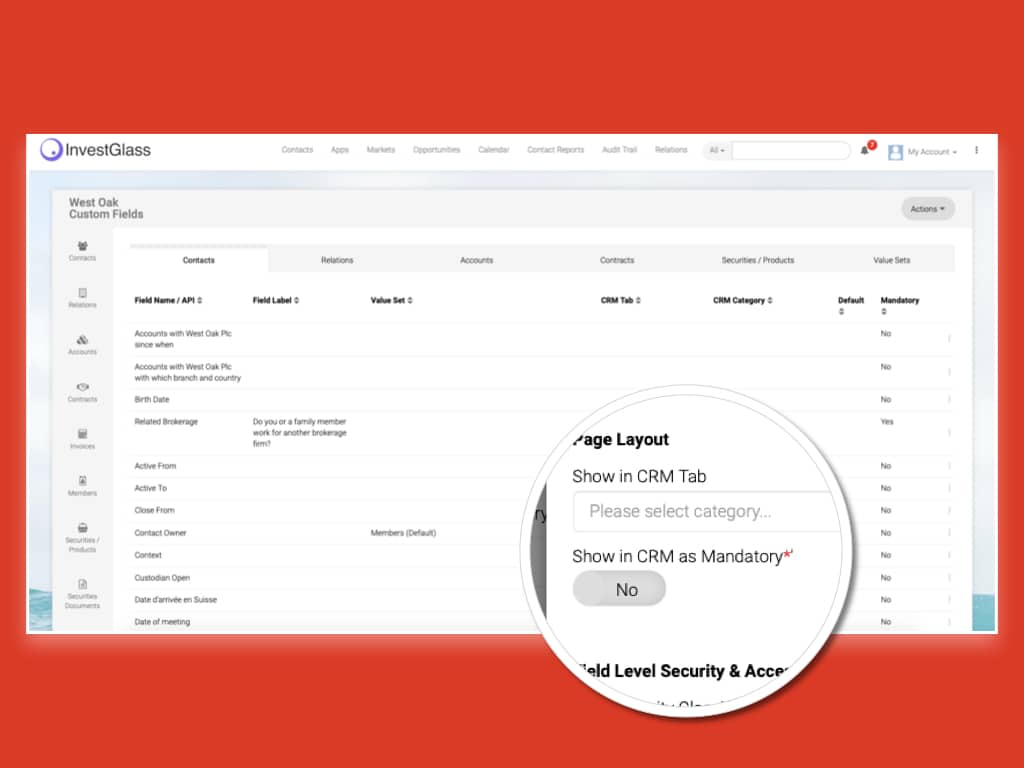
Core Concepts: Calculated Fields, Expressions, and Inputs
A calculation field is fundamentally a read-only field whose value is computed from other fields. The end user cannot directly edit the result, it updates automatically when input fields change.
Understanding the roles of different fields is the first step:
- Input fields capture user-entered data: quantity, price, start date, income amount, risk questionnaire answers
- Output fields display computed results: total, maturity date, risk score, fee amount, age
When working with calculated fields, it is crucial to understand the details of input variables, formulas, and use cases to ensure accurate and effective field calculation form pdf customization.
Most PDF tools and form builders support standard operators for expressions:
Operator | الوظيفة | مثال على ذلك |
|---|---|---|
+ | Addition | price + fee |
- | Subtraction | gross – tax |
* | Multiplication | quantity * price |
/ | Division | total / count |
( ) | Parentheses for grouping | (a + b) * c |
>, < , = | Comparison | age >= 18 |
Here is a simple numeric example that references existing form fields by name: |
Total = Quantity_1 * Price_1 + Quantity_2 * Price_2
This expression takes the values from two quantity fields and two price fields, performs multiplication and sum operations, and assigns the result to the Total field.
Beyond basic operators, most calculation engines provide function categories:
- Math functions: sum, min, max, round, average
- Date functions: add days, add months, difference in years
- Logical functions: if, and, or for conditional calculations
InvestGlass mirrors these concepts in a low-code expression builder, allowing non-technical compliance and operations teams to configure and maintain calculation rules without writing code from scratch.
Setting Up Calculation Fields in a PDF or Digital Form
Creating your first calculated field follows a consistent pattern whether you use Adobe Acrobat Pro, another PDF editor, or a digital form builder like InvestGlass.
Step 1: Name Your Fields Carefully
Before writing any expression, establish a consistent naming convention. Avoid spaces and special characters. Use descriptive names like:
- qty_fundA
- price_fundA
- total_subscription
- client_dob
- calculated_age
Clear field names make formulas readable and maintainable. When you later need to edit a formula, seeing qty_fundA * price_fundA is far more helpful than Field1 * Field2.
Step 2: Create the Designated Field
Open your PDF in Adobe Acrobat or your form builder. Navigate to the form editing tools and create a new text field where the calculated result should appear. Give it a meaningful field name like “total_investment”.
Step 3: Open Text Field Properties
Double click on the field to open the text field properties dialog. Navigate to the calculation tab or equivalent option in your tool. This is where you can configure calculations and set default values or default formats for the field.
Step 4: Configure the Calculation
You have several options depending on your tool:
- Simple built-in calculations: Select a calculation type such as Sum, Product, Average, Min, or Max, then select which pdf form fields should be included.
- Custom expression: Enter a formula manually, referencing other fields by name. You can also specify a default value or default output format for the calculated field.
- Custom JavaScript: For advanced logic, write scripts that can handle complex conditional calculations.
For a straightforward total, select “Product” if multiplying two fields, or “Sum” if adding multiple line items.
To perform a calculation involving only one field, such as multiplying one field by a constant, use an expression like qty_fundA * 1.5 to automatically update another field. For calculations using two numbers from two different fields, such as multiplying quantity and price, use qty_fundA * price_fundA to display the result in the designated field.
Step 5: Saving, Preview and Test
After configuring your calculation, make sure you are saving the form to apply your changes. Open it in preview mode. Enter sample values, for example, quantity 100 and price 1,250, and verify that the Total field updates to display 125,000 automatically.
InvestGlass Example
In InvestGlass, you would create a form with input fields for each fund line item. Then add a field named “Investment Total (CHF)” and configure it as a calculated field using the expression builder. You can also layer validation rules, ensuring the total meets minimum ticket amounts and aligns with the client’s declared risk profile, directly within the same configuration screen.
Using Expressions, Math Functions, and Conditional Logic
When built-in Sum and Product options are not sufficient, you need to work with functions and conditional expressions.
Math Functions
Common math functions let you control precision and enforce business rules:
- round(advisory_fee, 2) , Rounds a fee to two decimal places
- max(100000, EnteredAmount) , Ensures the result is at least CHF 100,000 (minimum ticket size)
- min(portfolio_value * 0.02, 50000) , Caps the fee at CHF 50,000
Date Logic
Date calculations are essential for contract management:
- EndDate = StartDate + 365 , Computing maturity one year from start
- ReviewDate = OnboardingDate + 180 , Setting a six-month review date
- Age = today() – DateOfBirth , Calculating client age in years
Conditional Expressions
The if() function enables dynamic logic:
if(TotalInvestment >= 1000000, "High Tier", "Standard Tier")
This assigns a client segment based on their investment amount. Other examples:
- if(portfolio_value > 500000, 0, setup_fee) , Waives setup fee for large portfolios
- if(risk_score > 70, “Aggressive”, if(risk_score > 40, “Balanced”, “Conservative”)) , Maps scores to risk labels
JavaScript in PDF Forms
In tools like Adobe Acrobat that support JavaScript, you can write scripts for complex calculations. A typical pattern:
var qty = this.getField("quantity").value;
var price = this.getField("unit_price").value;
event.value = Number(qty) * Number(price);
This approach gives you access to the full JavaScript language for scenarios where simple expressions fall short.
تكامل إنفست جلاس
InvestGlass extends these capabilities with AI and rule-based workflows. When a computed risk score crosses a threshold, the system can automatically trigger compliance tasks, send notifications, or route the case for enhanced due diligence, turning a simple calculation into an intelligent workflow that can also support sector-specific solutions such as an InvestGlass CRM للمعالجين.
If you want to master advanced scripting or formula writing for PDF forms, consider taking a programming course focused on JavaScript or PDF automation and explore resources on AI-enhanced portfolio management techniques to connect your form logic with downstream investment processes.
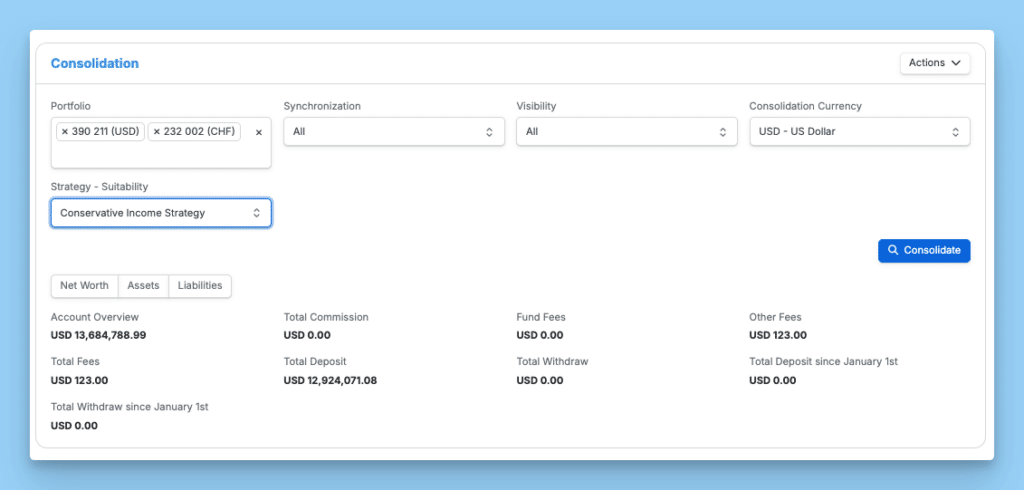
Formatting Calculated Values: Numbers, Currencies, and Dates
Correct formatting is as important as correct math, especially in financial documents that regulators may review. A field value of 1923.0769230769 is mathematically accurate but professionally unacceptable.
Numeric Formatting
Control how numbers appear to users:
- Decimal places: Display 2.5 as “2.50” for consistency
- Thousand separators: Show 1250000 as “1’250’000” (Swiss convention) or “1,250,000”
- Percentage display: Convert 0.025 to “2.50%”
- Negative values: Use parentheses enclosed around negative amounts, e.g., (1,500.00), or a minus symbol
You can specify a default format or default value for a calculated field to ensure consistency across all generated forms. Setting a default ensures that, even if no user input is provided, the field displays a predictable and professional value.
Currency Formatting
Financial documents require proper currency symbols:
- Swiss franc: CHF 1’923.00
- Euro: EUR 1,923.00 or €1,923.00
- US dollar: USD 1,923.00 or $1,923.00
Ensure all fields feeding a currency total are formatted as numeric types, text entries like “one thousand” will break calculations.
Concrete Examples
- Tax calculation: tax = total * 0.077 formatted as “CHF 1’923.00” for Swiss VAT
- Management fee: fee = portfolio_value * 0.008 displayed as “0.80%”
- Commission: commission = aum * 0.005 shown as “CHF 12’500.00”
Date Formatting
Select patterns appropriate to your jurisdiction:
- Swiss/European: dd.MM.yyyy (e.g., 15.03.2026)
- ISO format for system exports: yyyy-MM-dd (e.g., 2026-03-15)
- US format: MM/dd/yyyy (e.g., 03/15/2026)
Formatting does not change the underlying stored data, only how it appears to the signer or user. This distinction matters for exports, audits, and reporting. InvestGlass preserves the raw values while allowing flexible display formatting across the client portal and exported documents.
Validation, Error Handling, and Compliance Considerations
Mis-typed numbers or dates can lead to non-compliant forms, rejected subscriptions, or incorrect KYC data. Validation rules catch these errors before they propagate through your systems.
Numeric Validation
- Range enforcement: Minimum subscription CHF 10,000, maximum CHF 5,000,000
- Required fields: Ensure critical values like investment amount cannot be left blank
- Type checking: Reject non-numeric input in price or quantity fields
Logical Checks
- Date sequencing: EndDate must be greater than StartDate
- Age verification: Client age >= 18 (or 21 in certain jurisdictions)
- Suitability alignment: TotalInvestment ≤ client’s declared capacity to bear loss
These checks reference regulatory frameworks like MiFID II for EU clients or LSFin (Swiss Financial Services Act) for Swiss operations.
Error Messages
Guide users with clear, actionable messages:
“Please enter an amount between CHF 10’000 and CHF 1’000’000”
“The end date must be after the start date”
“Your investment amount exceeds your declared risk capacity. Please adjust or contact your advisor.”
سيادة البيانات** and Compliance**
InvestGlass, hosted in Switzerland, stores calculated and validated values under Swiss data sovereignty. For البنوك, asset managers, and insurers subject to FINMA regulations or EU data protection requirements, this ensures that sensitive computed values, net worth, income, risk scores, remain within a compliant jurisdiction.
Validation rules should be documented and reviewed by compliance teams. Create an audit trail showing when rules were changed and by whom. This governance supports regulatory examinations and internal quality assurance.
Building Calculation Workflows with InvestGlass
InvestGlass extends basic PDF-style calculations into full دورة حياة العميل workflows. Here’s how it works in practice.
Automated Workflow Triggers
When an onboarding form includes calculated fields, those results can trigger downstream actions:
- Client completes a risk questionnaire
- Form calculates aggregate risk score (e.g., 78 out of 100)
- Score maps to “Aggressive” profile based on configured thresholds
- If score exceeds 70, workflow automatically assigns a compliance review task
- Compliance officer receives notification with the form data ready for review
This eliminates manual handoffs and ensures no high-risk client slips through without appropriate oversight.
التكامل مع إدارة المحافظ الاستثمارية
Calculated fields in client-facing forms can push values directly into InvestGlass portfolios and underpin استراتيجيات إدارة المحافظ المدفوعة بالذكاء الاصطناعي:
- Target allocation percentages from a suitability questionnaire populate the model portfolio
- Expected contribution amounts from subscription forms create pending transaction records
- Rebalancing thresholds calculated from client preferences configure automated alerts
Client Portal and Reporting
Performance reports displayed in the InvestGlass client portal can include auto-calculated values:
- Yield calculations: (Current Value – Initial Investment) / Initial Investment × 100
- Drawdown metrics: comparing peak values to current positions
- Fee impact summaries: showing total fees as a percentage of returns
These calculations run when reports are generated, ensuring clients see correct figures without manual spreadsheet work.
AI-Driven Checks
InvestGlass AI can review calculated outcomes and suggest actions:
- Unusually high leverage detected → suggest additional KYC documentation
- Risk score inconsistent with stated investment horizon → flag for advisor review
- Calculated net worth below minimum threshold → trigger alternative product recommendation
خيارات النشر
Whether cloud-hosted in Switzerland or deployed on-premise, InvestGlass ensures that sensitive computed values remain under your organisation’s control. This matters when risk scores, net worth calculations, and income data must satisfy strict data residency requirements.

Advanced Features with Adobe Acrobat
Adobe Acrobat Pro elevates PDF form creation with a suite of advanced features designed for power users and organizations with complex requirements. One of the most powerful tools is the ability to use JavaScript within your PDF forms. With JavaScript, you can create custom calculated fields, implement sophisticated validation rules, and automate dynamic behaviors that respond to user input in real time.
In Adobe Acrobat Sign, calculated fields can be defined using text tags, the web application, or PDF form fields. Calculated fields can be automatically populated or updated during the signing process, often triggered by sign directives or signer-specific data, enabling dynamic calculations and form behaviours as part of the signing workflow.
Beyond scripting, Adobe Acrobat Pro streamlines the form-building process with intuitive drag-and-drop tools, allowing you to quickly place and align form fields on your page. Pre-built form templates further accelerate setup, ensuring consistency and compliance across your documents. These features are especially valuable when you need to create forms that adapt to different scenarios, such as displaying additional fields based on previous answers or recalculating values as data changes.
By leveraging these advanced capabilities, you can create interactive PDF forms that not only collect data but also perform complex calculations, enforce business rules, and automate routine tasks. This level of automation is essential for financial institutions seeking to reduce manual effort, minimize errors, and maintain compliance, all within the secure environment provided by Adobe Acrobat and Adobe Acrobat Pro.
Practical Tips, Testing, and Maintenance
Calculation logic is living logic. It changes when products, fees, or regulations change. Building maintainability into your approach saves significant effort over time.
Version Your Forms
Keep a version number and change log for every form:
- “Fee Schedule v3.2, effective 01.01.2027”
- “Subscription Form v2.1 – Updated VAT rate from 7.7% to 8.1%”
Document every formula change with the date, reason, and approver. This creates an audit trail that regulators appreciate.
Create Test Plans
Build sample client profiles with specific inputs and expected outputs:
Profile | العمر | المحفظة | درجة المخاطرة | Expected Tier |
|---|---|---|---|---|
Test Client A | 45 | CHF 250,000 | 55 | Balanced |
Test Client B | 32 | CHF 1,500,000 | 82 | عدواني |
Test Client C | 67 | CHF 75,000 | 28 | محافظ |
Run these test cases after any formula update to verify calculations remain correct. |
Cross-Browser and Cross-Device Testing
For web-based forms that match PDF functionality, ensure calculations behave consistently across Chrome, Safari, Firefox, and mobile devices. A formula that works on desktop but fails on mobile creates client frustration and potential data quality issues. Additionally, test calculations using data from other places or sources within the form or system to ensure robustness and comprehensive coverage.
Governance Reviews
In regulated firms, calculation rules should be reviewed by compliance and risk teams, not just IT, before going to production. Schedule periodic reviews (at least annually) to confirm formulas still align with current regulatory requirements and fee structures.
Organisations still using paper forms or static PDFs can migrate to automated, calculated digital forms within InvestGlass to improve accuracy, auditability, and client experience.
The step from manual processes to intelligent forms is not merely a convenience upgrade. It represents a fundamental shift in how financial institutions manage data quality, reduce operational risk, and deliver better client experiences.
Start by auditing your current form processes. Identify where manual calculations create risk, then explore how InvestGlass can streamline those workflows with automatic field calculation, validation, and integration into your broader إدارة دورة حياة العميل.


